
Generate one SSH key per GitHub account, add the private keys, register public keys on GitHub, and distinguish hosts in ~/.ssh/config to fix the Permission denied error.
1. Generate multiple SSH keys
ssh-keygen -t rsa -C "Yourname@Domainname.com"Before pressing Enter, type a name for the key (e.g. key_one), then press Enter through to generate it. For a second account, repeat to create e.g. key_two.
2. Add the private keys
ssh-agent bash
ssh-add key_one
Mind key_one''s path. On success it shows: Identity added: key_one (key_one).
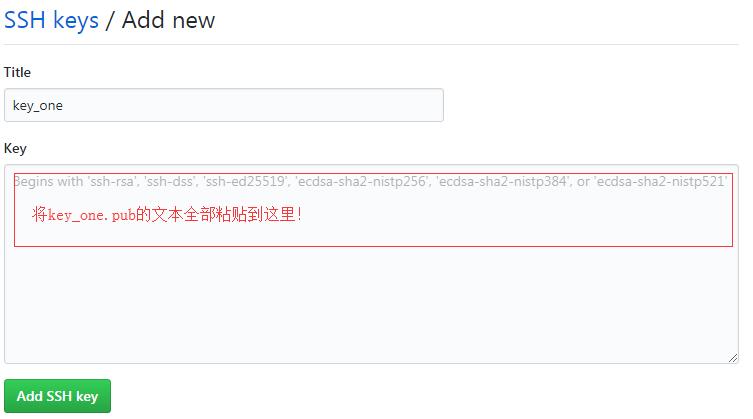
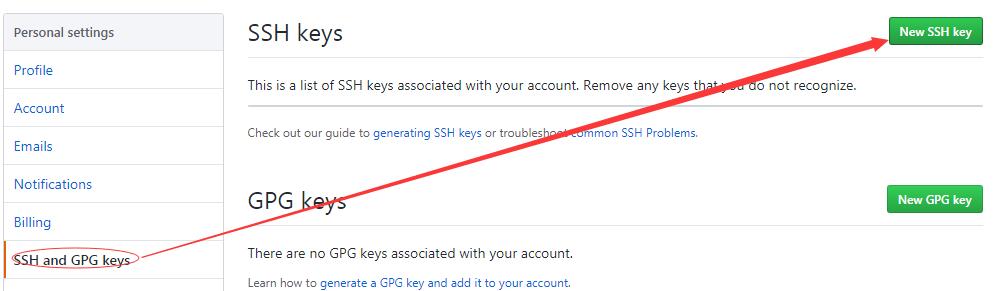
3. Add SSH keys on GitHub
Add each public key to its matching account — don''t mix them up.
4. Create a local config file
touch ~/.ssh/config
vi ~/.ssh/config
Fill in the config, for example:
# key_one(Yourname@Domainname.com)
Host github.com
HostName github.com
PreferredAuthentications publickey
IdentityFile F:/key/key_one
User one
5. Test the connection
ssh -T git@github.comOn success: Hi ***! You''ve successfully authenticated, but GitHub does not provide shell access. If it fails, carefully recheck the steps above.